
Mod guide Astro Bot Rescue Mission
How to Play Astro Bot Rescue Mission on Quest 3 and PC VR
Last updated: October 23, 2026
A living guide, updated as AstroQuest changes. For how the emulator fakes a PS4, a PS VR and its camera, see our October 7 deep dive.
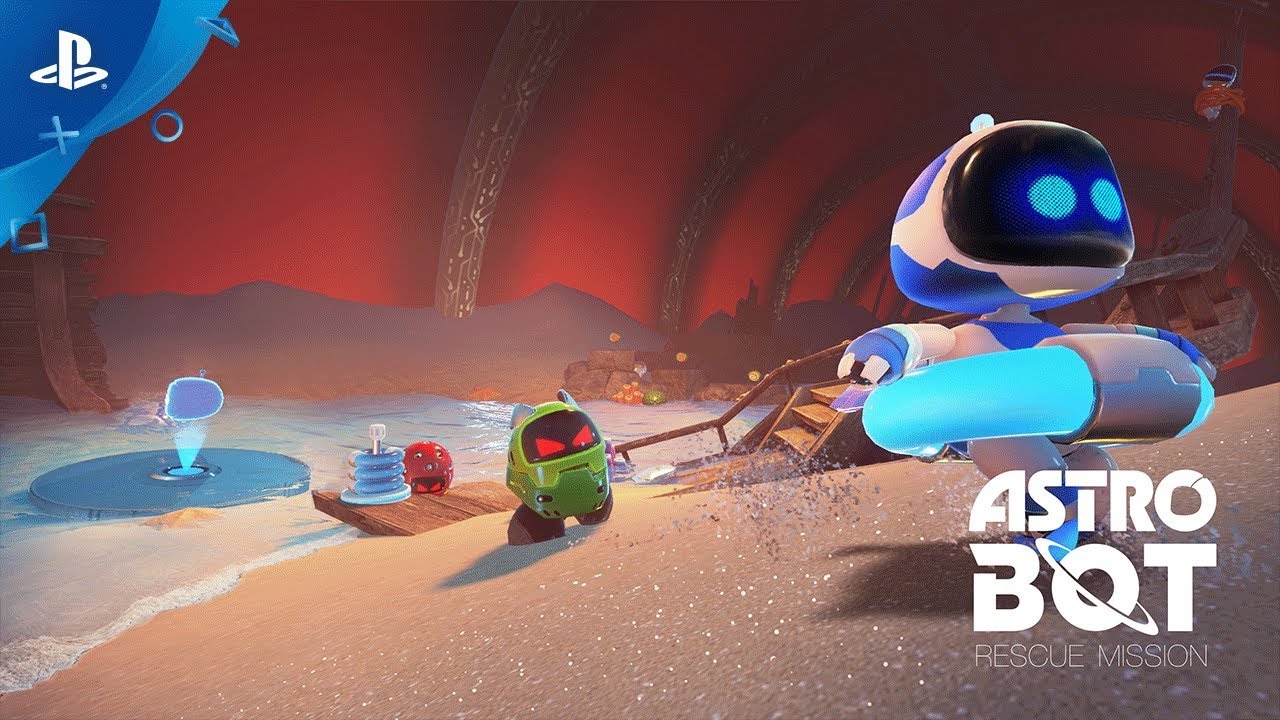
AstroQuest is a free, open-source fan project that plays Astro Bot Rescue Mission, Sony's 2018 PlayStation VR platformer, on a Meta Quest 3 with no console and no PC, or on a Windows PC streamed to almost any VR headset. It runs the shadPS4 PlayStation 4 emulator and fakes the PS VR hardware around it. It includes no game: you need your own dump of the European release, or since version 0.22 the American one, from your own PS4. The current version is 0.23, released October 21, 2026. It plays at a steady 30 frames a second on the Quest 3 alone, and on a PC it now draws a new frame for every refresh of the headset, as many as the PC can make.
| Frames a second | Picture per eye | |
|---|---|---|
| Original PS4 + PS VR | 60 | 960x1080 to 1440x1536 |
| Quest 3 alone | 30 | 816x870 to 1200x1280, enlarged with FSR 1 |
| PC + Virtual Desktop | One per headset refresh by default, or 60 | 1440x1536 up to 4320x4608 |
Three ways to play, from the AstroQuest README and PC notes as of version 0.23.
The part it will not give you
VR.org will not fill that gap either. Any site offering the 13 GB game folder is offering a pirated copy, and you have no way to know what else is in it. For American owners, the 0.22 release notes say the US release "is taken for the same game, on the PC and on the Quest," after a player reported it working in an October 14 GitHub issue. It gets the same timing and picture fixes as the European release wherever its build is one the emulator recognizes, and the console window, or core.log on the Quest, says whether it is. Other regions are still untested.
What you need
| Quest 3 on its own | PC VR | |
|---|---|---|
| Headset | Quest 3 (3S should work, untested) | Any headset with an OpenXR runtime on Windows |
| Computer | Any, for installing with adb or SideQuest | Windows 10 or 11, Vulkan 1.3 GPU, 16 GB of memory |
| Software | Developer mode on the headset | Virtual Desktop or SteamVR, Visual C++ runtime |
| Controller | DualSense, Touch controllers or a gamepad | DualSense on the PC, or Touch controllers |
| Storage | About 13 GB on the headset for the game | About 13 GB for the game |
Requirements by route, from the README.
Quest 3 on its own, step by step
Sideloading is the only way in. You need developer mode, and either adb, Android's command-line tool, or SideQuest, which does the same job with a window. The APK comes from the project's latest release.
Tick steps off as you go. Your progress stays on this device, so you can follow along on your phone at the PC.
- Turn on developer mode. In the Meta Horizon app on your phone, switch the Quest 3 to developer mode. On Windows, adb may also need Meta's ADB driver, described on the same Meta page.
- Install the app. Download the file ending in Quest3.apk from the latest AstroQuest release on GitHub. Connect the headset by USB, allow USB debugging in the headset, and install it with adb install -r, or drag the APK onto SideQuest.
- Copy your game to the headset. Copy your own game folder, about 13 GB and named CUSA12392 (CUSA12431 for the American release), to /data/local/tmp/astro/games/ on the headset with adb push. It takes a few minutes. If your dump is a .pkg file, unpack it on a Windows PC first with the PC version's launcher, which needs no VR hardware for that job.
- Pair a controller, or skip it. Pair a DualSense with the headset in Settings, Bluetooth, if you have one. It is the closest match to the PS4 controller the game expects. The Touch controllers also play the whole game.
- Start Astro VR Host. Open Astro VR Host from your App Library under Unknown Sources. The first start takes a little longer and asks for the microphone, which the game uses when it wants you to blow on things.
- Keep the default settings and play. A start-up menu offers field of view, detail, foveated rendering, upscaling and refresh rate. The project says the defaults are the ones to start with. Expect some stutter in the first minutes of the first session while the shaders compile once.
The settings that matter on Quest 3
Version 0.21 added a menu at every start and locked the frame rate to a steady 30, letting only the picture's size move with what the GPU can manage. The developer measured each option on the headset and published the numbers in the Quest notes. The defaults are the ones the project recommends.
| Setting | Default | What it does |
|---|---|---|
| Detail further away | Lighter | Simpler distant models and smaller sun shadows: about a sixth less GPU time in level 3-2 |
| Foveated rendering | Medium | Shades the edges of the view in 2x2 blocks. With Lighter, a 3-2 frame takes 14.3 ms of GPU time instead of 20.1 |
| Picture enlarged with | FSR 1 | AMD's upscaler for crisper edges, at about 0.65 ms a frame |
| Display refresh rate | 90 Hz | Each frame shown three times. 120 Hz is the other choice |
The Quest 3 start-up menu, added in version 0.21 and unchanged through 0.23, with the project's own measurements.
Even with all of it, the project is plain that the standalone picture stays well below the PS4's, because the Quest 3's mobile GPU cannot draw this game through an emulator any sharper at 30 frames a second. If you have a capable PC, that is where the full picture is.
Playing from a PC
The Windows build runs the emulator on your PC and sends the picture to the headset. Up to version 0.22 its default was the PS4's 60 frames a second. Since 0.23 the default, called Full, draws a new frame for every refresh of the headset, as many as the PC can make. The release notes credit most of that release's PC changes to a fork of the project by evertec82, now folded into the main release.
Tick steps off as you go. Your progress stays on this device, so you can follow along on your phone at the PC.
- Unzip it somewhere short. Download the file ending in PC-VR-Windows.zip from the latest release and unzip it into a folder with a short path, such as C:\Games\AstroQuest. Some game files have long names, and Windows caps a full path at 260 characters.
- Add your game. Put your game folder, or the .pkg made from your dump, in its games folder. The launcher unpacks a package on the first start, which takes about a minute and 13 GB.
- Connect the headset. Quest owners stream with Virtual Desktop: in the Streamer on the PC, choose VDXR as the OpenXR runtime, and in the headset set Virtual Desktop's streaming frame rate to 90 or 120. For a SteamVR headset such as a Valve Index, choose Set SteamVR as OpenXR Runtime in SteamVR's settings and start SteamVR first.
- Connect the controller to the PC. Connect a DualSense to the PC by USB or Bluetooth, not to the headset, or it arrives without its touchpad and motion sensors. The Touch controllers play too. If Steam is running, turn off Guide Button Focuses Steam and Enable Guide Button Chords for Controllers under Steam's Settings, Controller, Show Advanced Settings, or pressing PS and Triangle can make the controller seem to disconnect.
- Start the game. Run Play Astro Bot VR.bat, from the desktop you see in the headset if you use Virtual Desktop. A small window sets each eye's resolution, the frame rate, the game's language and the field of view. Leave the frame rate on Full, the default since 0.23, unless the game judders.
How fast Full runs depends on the PC. On the developer's Ryzen 7 9800X3D with an RTX 5070 Ti, at 2880 by 3072 pixels an eye with a simulated headset, the 0.23 notes report 90 frames a second at 90 Hz and 112 to 119 at 120 Hz. If Full judders on yours, they say to choose 60 in the launcher with the headset at 120 Hz, the console's own pace. Upgrading from an older version? A settings.txt carried over keeps the frame rate it had, so pick Full in the launcher's window once.
Graphics memory is the other limit. On an 8 GB card, a picture of 2160 by 2304 an eye once made every frame take seven times as long, so since 0.22 the picture stops growing while the card's memory is more than 80% in use. The PC notes cover every launcher setting.

Controls
Rescue Mission was built around a PS VR camera watching a DualShock 4. AstroQuest uses the Quest's hand tracking to work out where your gamepad is, and maps the controller's touchpad to buttons for controllers that lack one.
| Action | How |
|---|---|
| Move | Left stick |
| Cross, Square, Circle, Triangle | A, B, X, Y |
| Water cannon, machine gun | Hold the right trigger |
| Hook, throwing stars, chests | Press the right grip (a forward swipe on the touchpad) |
| Catapult at the end of a level | Pull back on the left trigger, let go to shoot |
| Blow into the microphone | X and Y together, or blow |
| Turn without turning yourself | Hold the left grip, flick the right stick (30 degrees a flick) |
| Reset the view | Hold the left menu button for a second |
Controls on the Touch controllers, from the README.
On the world map you pick a planet by looking at it and pressing Cross. Taking the headset off pauses the game. A DualSense or DualShock 4 uses its own touchpad, and since version 0.23 its R1 button swipes forward too, once a press, because the last boss's throwing stars want faster swipes than a thumb makes on the pad.

Known issues
The project calls itself a work in progress, built and tested by one person on one Quest 3 and one PC, with worlds 1 and 2 played through on the headset alone. Version 0.22 fixed the PC crash at the very end of level 2-2, and its PC notes explain the DualSense dropping out under Steam when PS and Triangle are pressed: Steam takes those button chords for itself, and the fourth PC step above turns that off.
Reports still open on its GitHub issues page on October 23 included a PC crash starting world 1-3, effects drawn in only one eye, missing lightning in the world 3 boss fight, a bot on the plane wing in level 1-2 that players could not rescue on the Quest, and an 8 GB RTX 3060 Ti PC that still ran slowly and then crashed on 0.23. The developer has also said the sun can show through scenery, which is not fixed yet. If the game stops, the release notes ask for the log file in an issue: on the Quest it is core.log in /sdcard/Android/data/com.astrobotquest.vrhost/files/, and on the PC it is pc-vr\user\log\shad_log.txt, which is replaced at every start. Since 0.22 the PC log always records why the emulator stopped.
Saves, updates and removing it
Installing a new version over the old one with adb install -r keeps your saves, and the 0.23 notes say the app installs that way over 0.20 or later. Uninstalling the app deletes them, so copy the savedata folder off the headset with adb pull first. Uninstalling also leaves the game behind if you copied it to /data/local/tmp/astro, and the headset's file manager does not show that folder. The README gives the command to delete it: adb shell rm -rf /data/local/tmp/astro, which frees about 13 GB.
On the PC, your saves live in pc-vr\user. When you unzip a new version, the release notes say to keep that folder and your games folder. Since 0.23 the launcher tells you when a newer release is out; update_check=0 in pc-vr\settings.txt turns that off.
Is it safe to install?
The code is public under the GPL-2.0-or-later license, the same as shadPS4's, with a notices file crediting every borrowed component, and each release ships SHA-256 checksums for its files. Download only from bigmak94/AstroQuest on GitHub. Copies of the repository exist under other accounts, and nobody can vouch for a rebuilt APK. Version 0.23 took in the PC fixes from evertec82's fork, so there is no need to run a fork to get them. Road to VR covered the release on October 5, and the project credits Claude, Anthropic's AI model, as a co-author on much of its code.
Version history
Ten releases between October 3 and October 21. By October 23, GitHub counted 4,796 downloads of the Windows build and 3,148 of the Quest app across all of them. Counts include people updating, so they overstate players.
- Oct 3, 2026 0.11 First release: the Quest 3 on its own at 30 frames a second in levels, and a PC build at 60 through Virtual Desktop.
- Oct 3, 2026 0.12 A simpler PC install: drop the game folder or package in, and a window finds the game if it is missing.
- Oct 3, 2026 0.13 Fixes PC sound that stayed silent until the emulator restarted.
- Oct 6, 2026 0.18 Game version 1.04 plays, SteamVR and other PC headsets join, and the Touch controllers can play on the Quest too.
- Oct 6, 2026 0.19 The game speaks your system language, and snap turning arrives for seated play.
- Oct 6, 2026 0.20 Fixes an invisible wall at the end of level 2-1 and squares in the lava glow at the end of world 2.
- Oct 13, 2026 0.21 A steady 30 frames a second on Quest 3, a start-up settings menu, a fix for black squares in the right eye, and a native Linux build.
- Oct 13, 2026 0.21.1 Fixes a crash at the last boss.
- Oct 19, 2026 0.22 The American release, CUSA12431, plays on the PC and the Quest. The soccer robots at the end of 2-2 keep the console's timing, which ends a PC crash above 60 frames a second and their slow motion on the Quest. On the PC, Virtual Desktop stops holding up the game on cards with a second graphics queue, and the picture stops growing when the card runs short of memory.
- Oct 21, 2026 0.23 On the PC, a new frame for every refresh of the headset becomes the default, white lines and ragged menu letters on NVIDIA cards are fixed, two larger picture sizes arrive, and the launcher says when a newer release is out. On the PC and the Quest, R1 on a DualSense or DualShock 4 swipes forward for the last boss's throwing stars.
More VR mods we have set up
Every mod we have covered, with the steps and a difficulty rating for each, is on our best VR mods page.
- Mod guideTitanfall 2 in VR
- Our articleHalf-Life 2 standalone on Quest 3
- Mod guideDiablo II: Resurrected in VR
- Our articleBreath of the Wild in VR with BetterVR
- Our articleMario Kart 64 in VR
Frequently asked questions
Is AstroQuest free?
Yes. AstroQuest is free and open source under the GPL-2.0-or-later license, published by its developer, bigmak94, on GitHub. It contains no game. You need your own copy of Astro Bot Rescue Mission dumped from your own PlayStation 4.
Can I use the copy I bought on the PlayStation Store?
Not as downloaded. The README says a package downloaded from the PlayStation Store is encrypted and cannot be used. It needs the game's folder or a package made from a dump of your own console and game, which in practice means running unofficial software on a PS4. AstroQuest gives no information on how to do that, and neither does VR.org.
Which version of Astro Bot Rescue Mission does AstroQuest need?
The European release, CUSA12392, at version 1.00 or 1.04, or since AstroQuest 0.22 the American release, CUSA12431. The 0.22 release notes say the American release "is taken for the same game, on the PC and on the Quest" and gets the same fixes wherever its build is one the emulator knows, which the console window, or core.log on the Quest, reports. Other regions are untested.
What frame rate does Astro Bot Rescue Mission run at on Quest 3?
30 frames a second on the Quest 3 by itself, steady since version 0.21, with the picture between 816 by 870 and 1200 by 1280 pixels per eye, enlarged with FSR 1. On a Windows PC streamed to a headset, version 0.23 draws a new frame for every refresh of the headset by default, as many as the PC can make, at up to 4320 by 4608 pixels per eye. The project measured 90 frames a second at 90 Hz and 112 to 119 at 120 Hz on a Ryzen 7 9800X3D with an RTX 5070 Ti, at 2880 by 3072 pixels per eye with a simulated headset. If that judders, 60 frames a second with the headset at 120 Hz is the PS4's own pace.
Does it work on Quest 3S or Quest 2?
The README says the Quest 3S has the same chip as the Quest 3 and should work, but the project has not tested it. The first Quest 3S report, an open GitHub issue from October 22, says the app could not read the game from either folder it looks in on a newer headset system version, with no answer from the developer yet. A Quest 2 or Quest Pro has not been tried on its own and would be slower. Any Quest can play the PC version streamed through Virtual Desktop or Steam Link.
Does AstroQuest work with PC VR headsets like the Valve Index or PS VR2?
Yes, through the PC version. It runs on any headset with an OpenXR runtime on Windows, and players have reported a Valve Index, a PS VR2 on its PC adapter, a Bigscreen Beyond and Pimax headsets working through SteamVR. The PC needs Windows 10 or 11, a Vulkan 1.3 graphics card and at least 16 GB of memory.
Do I need a PlayStation controller?
No. Since version 0.18 the Quest's Touch controllers play the whole game, and other gamepads work too. A PS5 DualSense is still the closest match to what the game was built for, with its touchpad, motion sensors and rumble.
Where do I download AstroQuest safely?
Only from the releases page of bigmak94/AstroQuest on GitHub, which also publishes SHA-256 checksums for every file. Since version 0.23 the PC launcher asks GitHub once as it starts and prints a line with the link when a newer release is out. Copies of the repository exist under other accounts. Never download the game itself from anyone: any site offering it is offering a pirated copy, and nothing tells you what else is in the folder.